
Invite the people you live with to your Cala home. Once they accept, they see your water heater in their own Cala app and can manage it with you.
Owners and members
Everyone in a home is either an owner or a member:
- Owner: the person who added the home. Owners can invite people, cancel invites and delete the home.
- Member: someone who accepted an invite. Members use Cala just like the owner, but can't invite people or delete the home.
Invite someone
You need to be the home's owner to do this.
-
In the Cala app, tap the menu icon at the top left.
-
Tap your home's name at the top of the menu. A list opens below it.
-
Tap Manage Homes.
-
Tap the home you want to share. Its HOME BASE page opens.
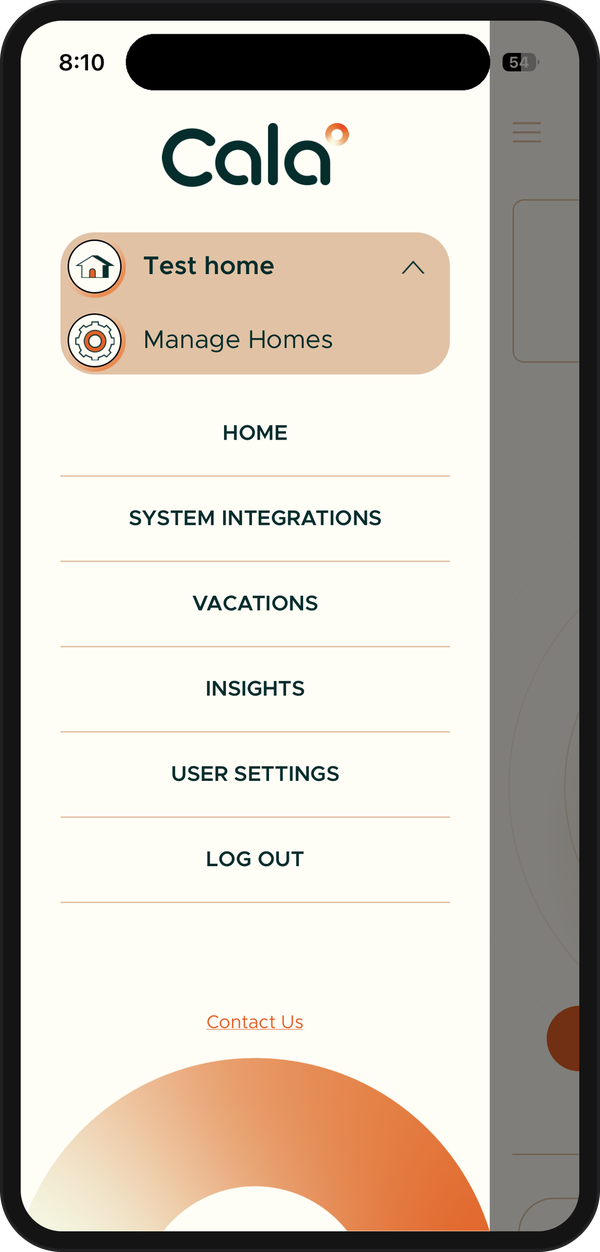
Tap your home's name, then Manage Homes. 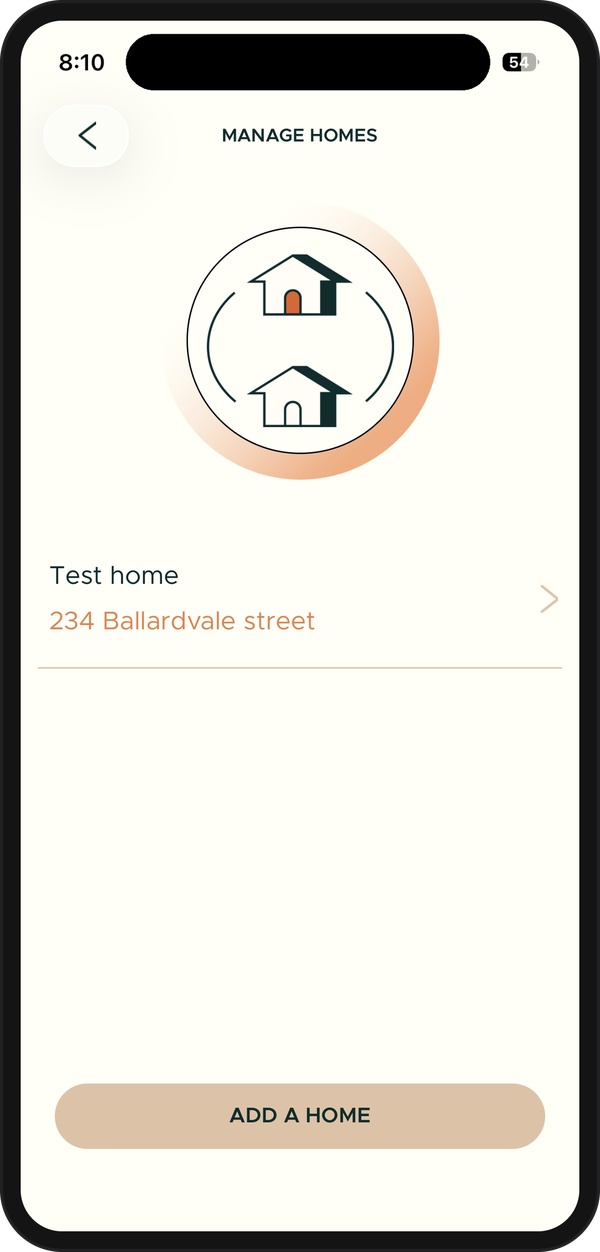
Tap the home you want to share. 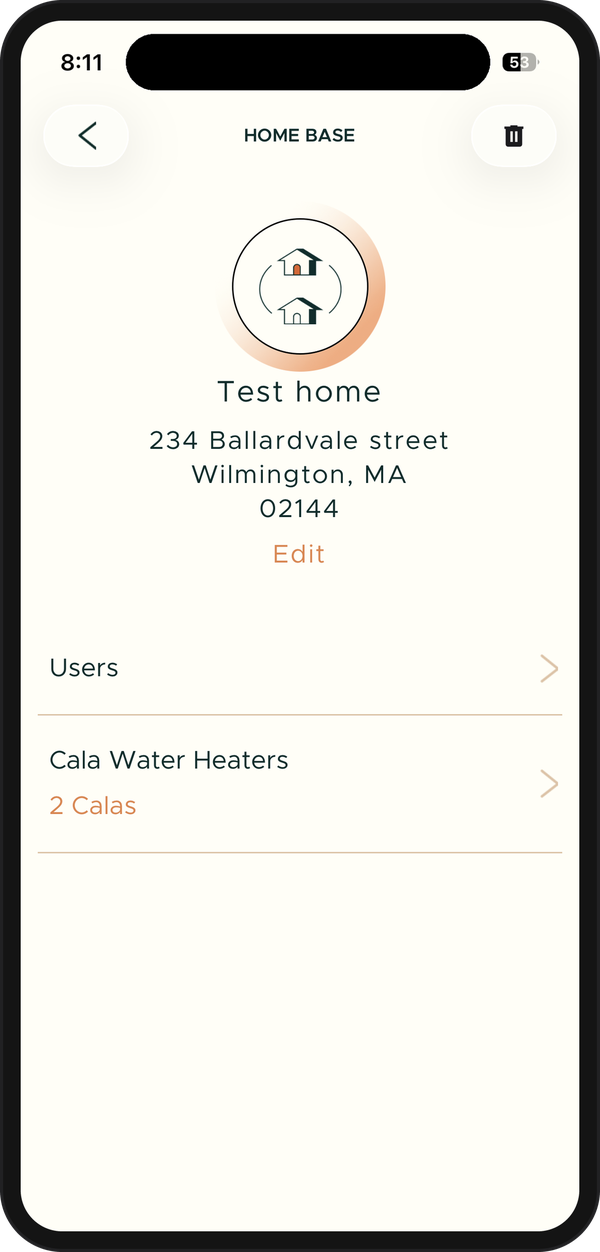
Then tap Users. -
Tap Users. The USERS page lists everyone in the home, with [YOU] next to your name.
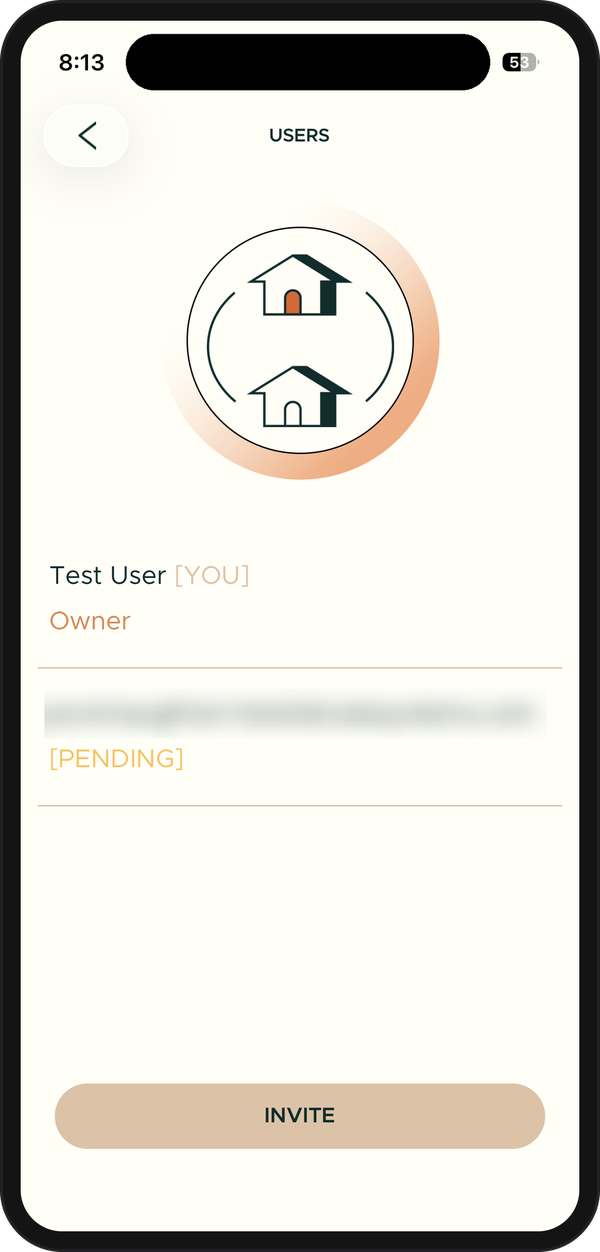
The invite waits as [PENDING] until it's accepted. -
Tap INVITE.
-
Enter the person's EMAIL ADDRESS. Use the email they use, or will use, for their Cala account.
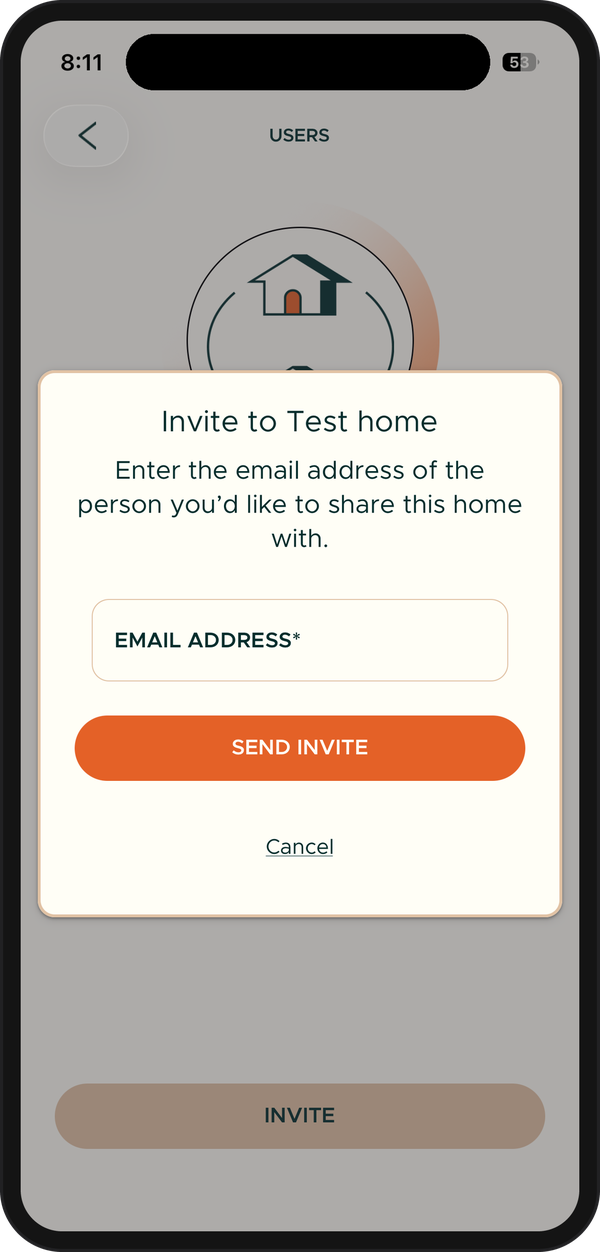
Enter their email, then tap SEND INVITE. -
Tap SEND INVITE. The app shows Invite sent, and their email appears in the list marked [PENDING] until they accept.
Cancel an invite
-
In the Cala app, on the USERS page, tap the email marked [PENDING].
-
Tap REVOKE. The invite disappears from the list and its link stops working.
Accept an invite
These steps are for the person who was invited.
-
On your phone, open the invite email from Cala and tap the link in it. It opens the Cala app. If you don't have the app yet, install it first.
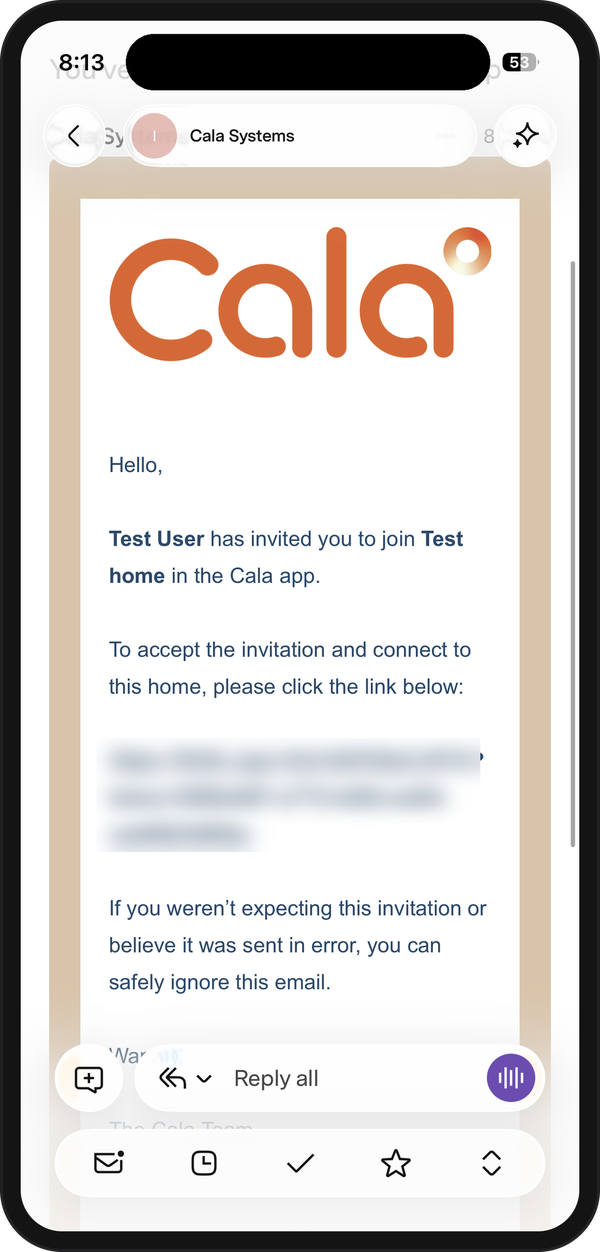
The invite email. Tap the link on your phone. -
Sign in, or create an account if you don't have one. Use the email address the invite was sent to. See Create your Cala account.
-
The app shows You're invited to and the home's name. Tap ACCEPT.
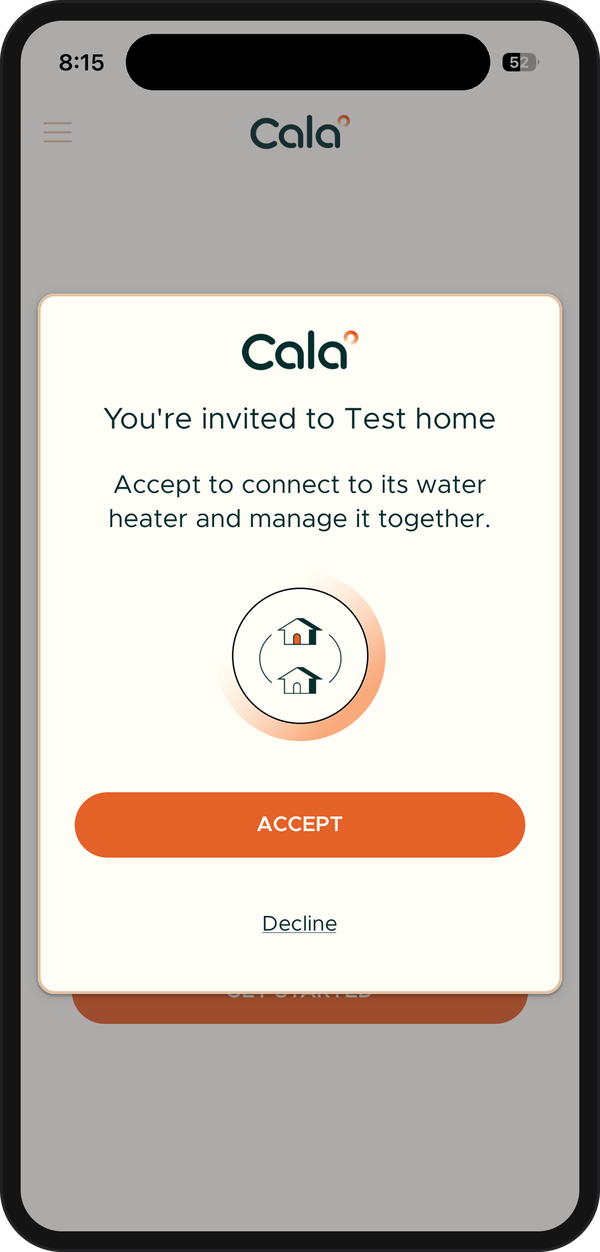
Tap ACCEPT to join the home. -
The app shows Welcome to your new home! and opens that home's Home screen.
If you don't want to join, tap Decline instead.
If the invite doesn't work
- This invite is for a different account: you're signed in with a different email from the one the invite was sent to. Tap SIGN OUT, then sign in with the invited email.
- This invite has expired: ask the home's owner to send a new invite.
- Invite unavailable: the link was already used or the invite was cancelled. Ask the owner to send a new one.
- Home limit reached: you can be part of at most 5 homes, and you're already in 5. If one of them is a home you own and no longer need, you can delete it (see Manage your homes and water heaters). Otherwise, tap Contact Us at the bottom of the app's menu.