
If your home has solar panels or a home battery, connect them to Cala in the Cala app. Cala uses what it learns about your solar to plan water heating for the hours when your panels are producing, so more of your hot water is made with your own power.
Open Solar & Battery
-
In the Cala app, tap the menu icon at the top left.
-
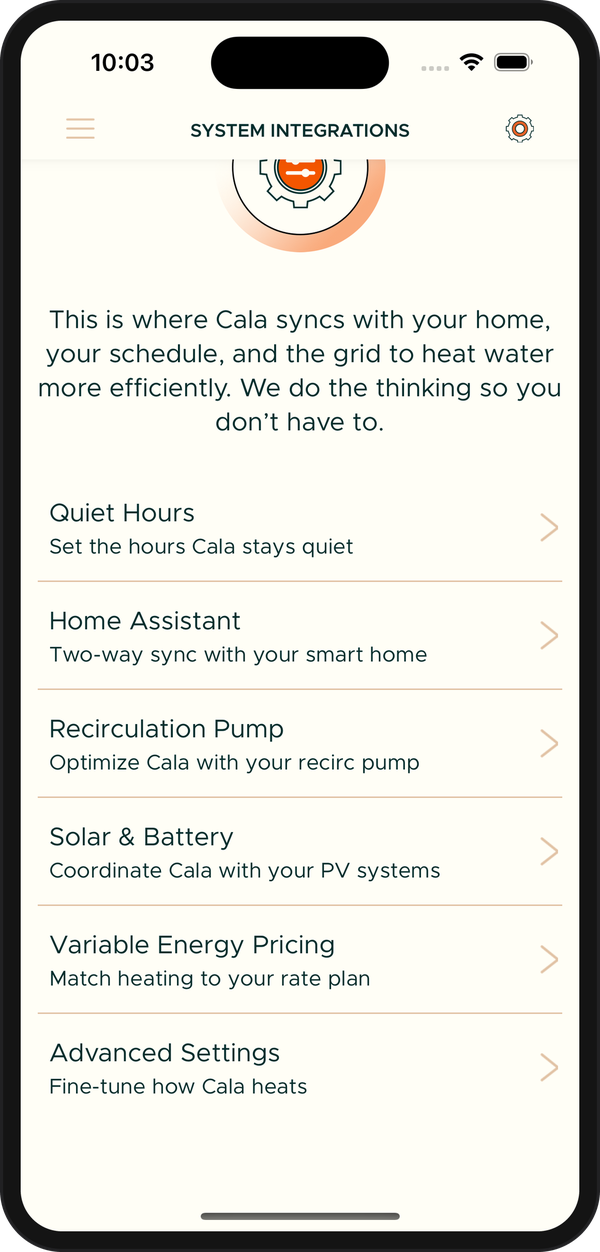
Tap SYSTEM INTEGRATIONS. The SYSTEM INTEGRATIONS screen opens.
Solar & Battery on the SYSTEM INTEGRATIONS screen. -
Tap Solar & Battery. The SOLAR & BATTERY screen opens.
There are two ways to connect. You can use either one, or both:
- Add your panels by hand (Manually Configure): you enter your panel details and Cala forecasts how much power they will make.
- Use Home Assistant: Home Assistant sends Cala your live solar production, battery charge and grid readings.
Add your panels by hand
-
On the SOLAR & BATTERY screen, tap Manually Configure. If you've already connected something, tap Add a solar array or battery at the bottom first. The ADD SOLAR screen opens.
-
In NAME, type a name for this set of panels, such as "Roof". It must be 4 to 20 characters long.
-
Tap DIRECTION and choose the direction your panels face, such as South or South West.
-
In NUMBER OF PANELS, type how many panels face that direction.
-
In PANEL POWER, type the power rating of one panel in watts (W), for example 400.
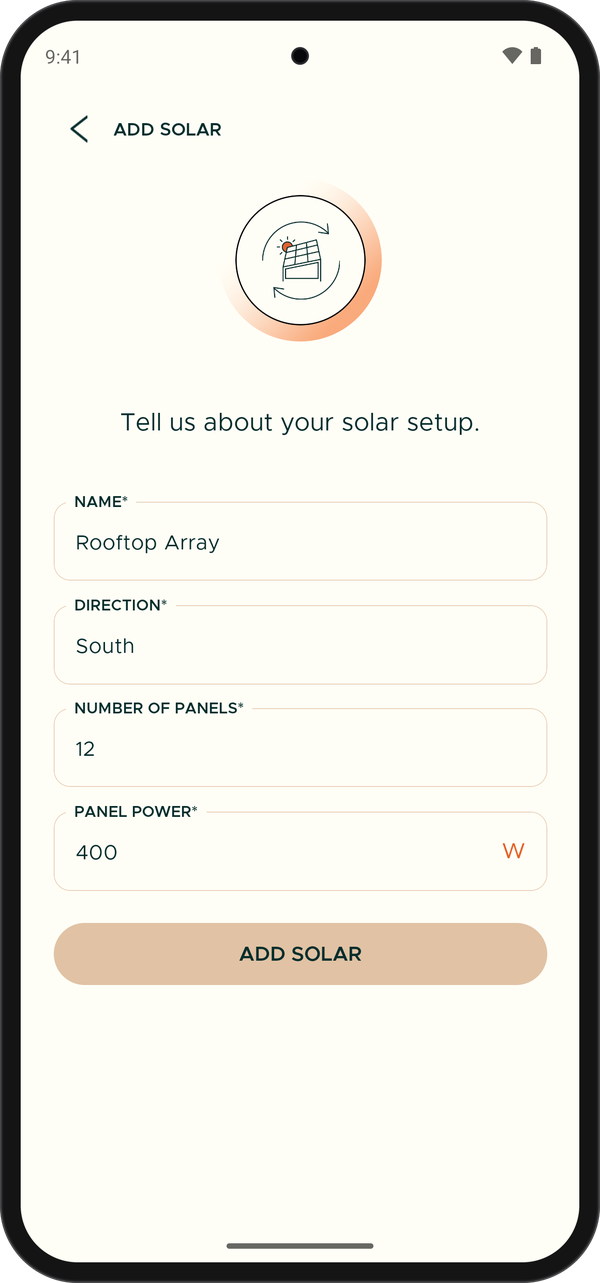
Fill in all four fields, then tap ADD SOLAR. -
Tap ADD SOLAR. You see "Solar Array Created". On the SOLAR & BATTERY screen, your panels are listed by name under YOUR SYSTEM, with the number of panels, their power and their direction.
Use Home Assistant
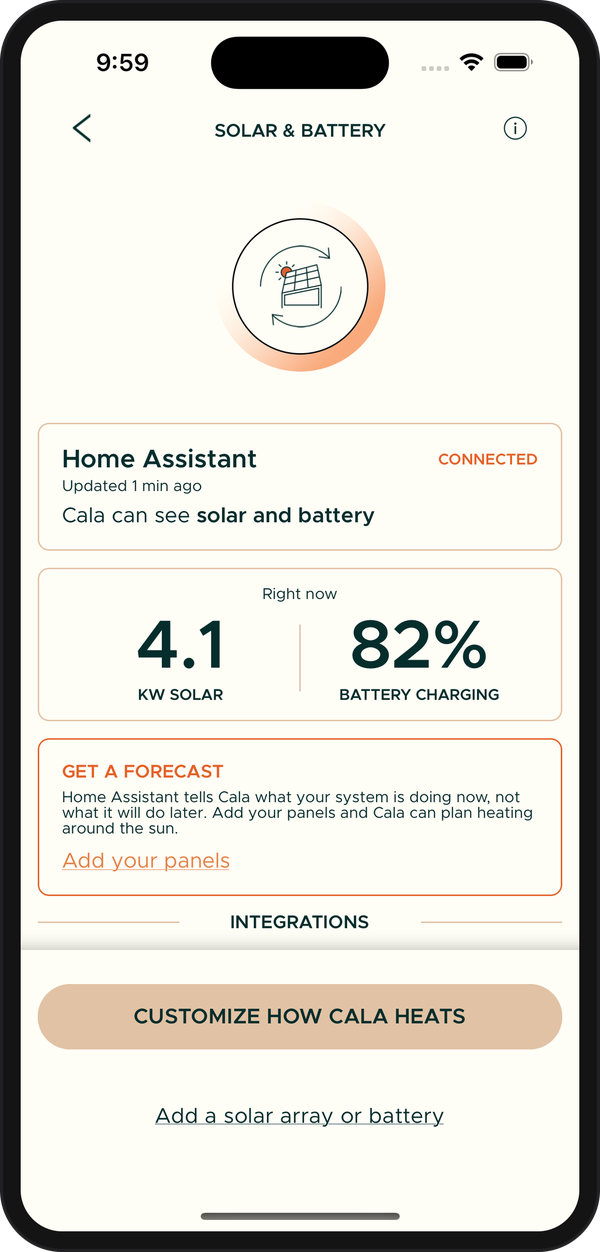
If your Cala is paired with Home Assistant, Home Assistant sends Cala what your system is doing right now. Set it up in Home Assistant: see Send solar, grid and battery data from Home Assistant. Once it's connected, the SOLAR & BATTERY screen shows Home Assistant with CONNECTED.
To let Cala plan ahead as well, add your panel details too: tap Add your panels on the GET A FORECAST card, then follow Add your panels by hand from step 2.
What the Solar & Battery screen shows
- Your source: Home Assistant with CONNECTED when Home Assistant is sending readings, and what Cala can see (solar only, or solar and battery). With only your panel details, it shows Manually configured with FORECAST ONLY.
- Right now: with Home Assistant connected, the solar power your panels are making in kilowatts (KW SOLAR) and your battery's charge.
- Today's expected solar: when Cala has a forecast from your panel details, a strip shows the hours your panels are expected to produce and the hours Cala prioritizes heating, for example "Prioritizing heating 11am to 2pm". Cala favors those hours when it can. You still get hot water whenever you need it.
- Heating with your solar: while Cala is heating your tank to full capacity with your extra solar, a card shows whether the heat pump and each element are on, and why.
- INTEGRATIONS: your Home Assistant pairing. Tap it to open the HOME ASSISTANT screen.
- YOUR SYSTEM: the panels you added by hand.
Tap the (i) icon at the top right to read how Cala plans with your rates and your solar.
Customize how Cala heats with solar
Tap CUSTOMIZE HOW CALA HEATS at the bottom of the SOLAR & BATTERY screen. The USING EXTRA SOLAR screen opens. There you tell Cala whether you have net metering, and choose when Cala heats your tank to its maximum with your extra solar: at a battery charge level, above an amount of power you're exporting, or above an amount your panels are producing. See Fine-tune how Cala heats: Advanced Settings.
If no source is set up yet, the app shows "Nothing set up yet". Connect Home Assistant or add your panels first.
Change or remove your panels
-
In the Cala app, tap the menu icon at the top left, tap SYSTEM INTEGRATIONS, then tap Solar & Battery.
-
Under YOUR SYSTEM, tap the name of your panels. A screen titled "Editing" and the array's name opens.
-
To change it, edit any of the details, then tap UPDATE SOLAR. You see "Solar Array Updated".
-
To remove it, tap the trash can icon at the top right. The array is removed from YOUR SYSTEM.
If something doesn't work
- "Name must be between 4 and 20 characters": make the name longer or shorter.
- "Solar name must be unique to home": another solar array in this home already has that name. Choose a different one.
- "Must be a whole number": type the number of panels and the panel power without decimals or units.
- You can't find SYSTEM INTEGRATIONS in the menu: your Cala is offline. See Change Wi-Fi or reconnect an offline heater.