
Cala can let you know when hot water has been running for a long time, or when water is used while your home is in vacation mode. Here's how to see your alerts and choose which ones you get.
See your notifications
-
In the Cala app, tap the bell icon at the top right of the Home screen. A number on the bell shows how many alerts you haven't read yet.
-
The NOTIFICATIONS screen opens, with your alerts grouped by day. If there's nothing to show, you'll see "No notifications in the last 7 days."
The alerts you can get
- Long shower in progress: hot water has been running for longer than the time you chose. The alert says how many minutes.
- Home early?: water was used while your home is in vacation mode.
Clear notifications
- To clear one, swipe it to the left, then tap the trash icon.
- To clear them all, tap Clear all at the top of the list.
Choose which alerts you get
-
On the NOTIFICATIONS screen, tap the gear icon at the top right. The NOTIFICATION SETTINGS screen opens.
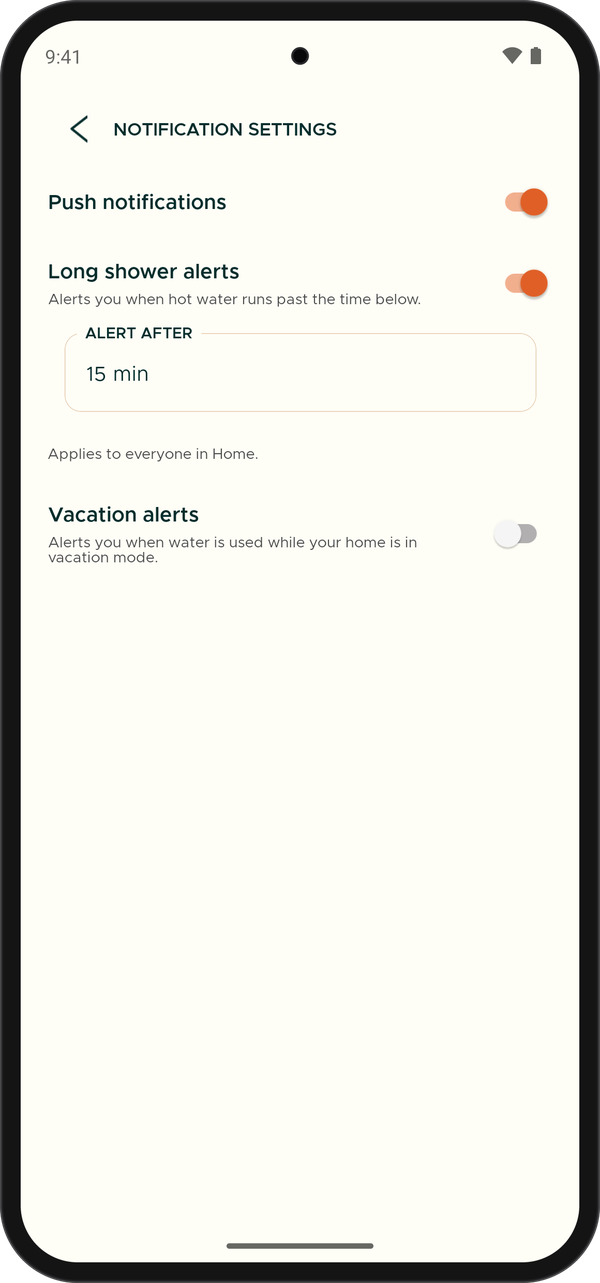
NOTIFICATION SETTINGS with push notifications and long shower alerts turned on. -
Turn on Push notifications if you want alerts to pop up on your phone. The switch turns orange when it's on.
-
Turn on Long shower alerts to hear when hot water runs longer than a set time.
-
Tap ALERT AFTER and choose how long hot water should run before you're alerted, from 5 to 60 minutes. The default is 15 minutes.
-
Turn on Vacation alerts to hear when water is used while your home is in vacation mode.
Each switch saves as soon as you tap it.
If your phone is blocking Cala's notifications
When you turn on Push notifications but your phone's settings don't allow notifications from Cala, the app shows "Notifications are off for Cala".
-
Tap Open Settings. Your phone's settings for the Cala app open.
-
Allow notifications for Cala.
-
Go back to the Cala app and turn on Push notifications again. The switch stays on.