
Connecting your Cala lets you see it and control it from the Cala app, wherever you are. You'll pair your phone with your Cala over Bluetooth, then send it your Wi-Fi details. Do it standing next to your water heater.
Step 1: Put your Cala in pairing mode
-
On your Cala's screen, go to the Home screen. If you're in a menu, press Back until you get there.
-
Press Up until APP CONNECT is highlighted, then press Select.
Before your Cala is connected, APP CONNECT is at the top of the Home screen. -
The MOBILE APP screen opens with CONNECT already highlighted. Press Select.
After APP CONNECT, press Select on CONNECT. The QR code downloads the Cala app. -
Your Cala shows STEP 1 OF 3: PHONE, Enter this code in the Cala app and a 5-digit code.
Type the 5-digit code from your Cala's screen into the app.
Keep this screen open. You'll type the code into the app in the next part.
Step 2: Pair your phone
-
In the Cala app, on your home's page, tap Cala Water Heaters, then tap ADD WATER HEATER. If the app's Home screen shows CONNECT WATER HEATER, you can tap that instead.
-
If your phone asks to allow Bluetooth, tap Allow. The app shows Searching for your Cala...
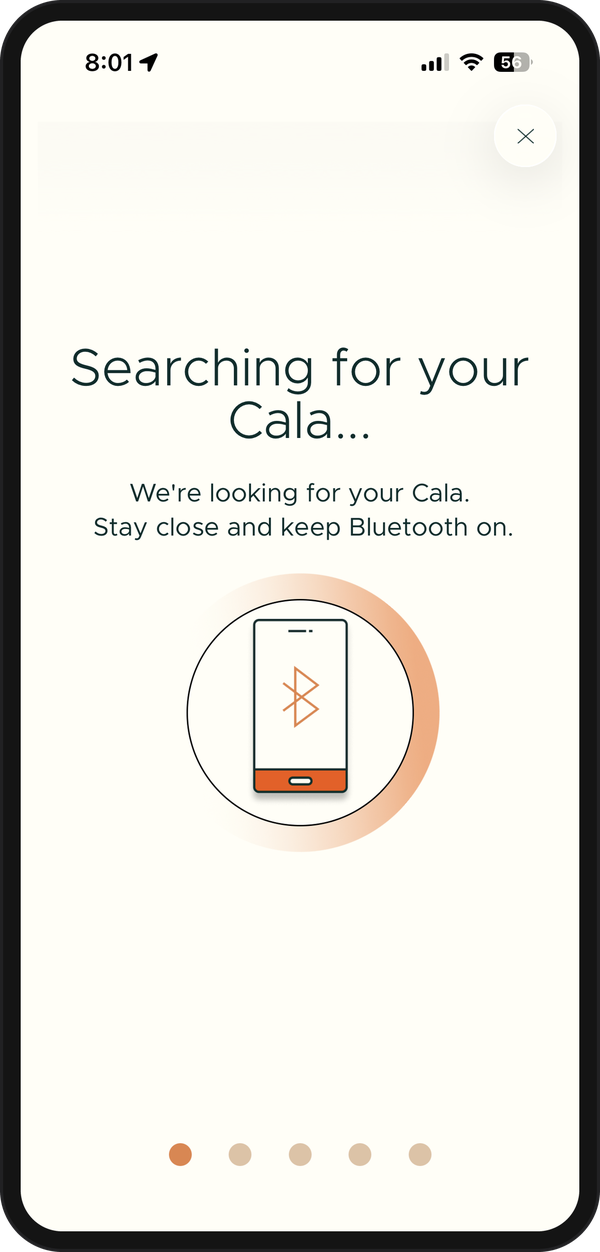
The app looks for your Cala over Bluetooth. -
When the app finds your Cala, it shows Cala Found! If it finds more than one, it shows Multiple Cala Heaters Detected!: tap yours, then tap SELECT.
-
Enter the 5-digit code from your Cala's screen.
-
Tap PAIR. The app shows Connecting to your Cala..., then Connection successful! while it looks for nearby Wi-Fi networks. Your Cala shows Phone paired.
Step 3: Connect to Wi-Fi
-
When the app shows Networks found!, tap CONNECT TO WI-FI. The SELECT NETWORK list opens.
-
Tap your Wi-Fi network. If you don't see it, tap Refresh List.
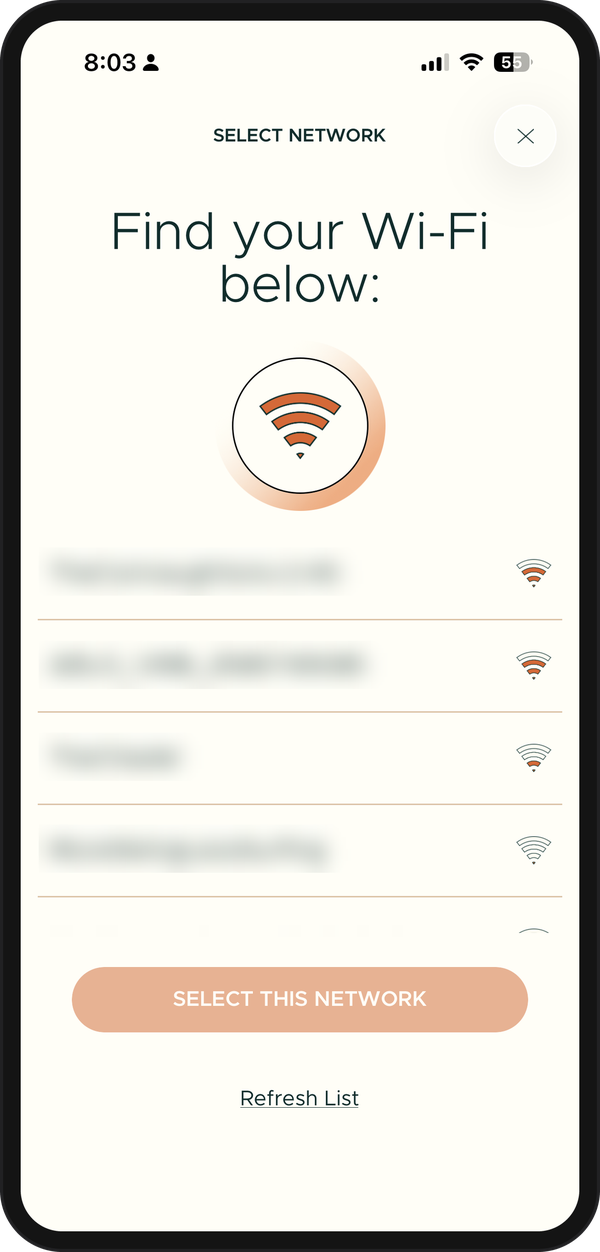
Pick your home Wi-Fi from the list. -
Tap SELECT THIS NETWORK. The app shows Enter Password for: and your network's name.
-
Enter your Wi-Fi password in PASSWORD.
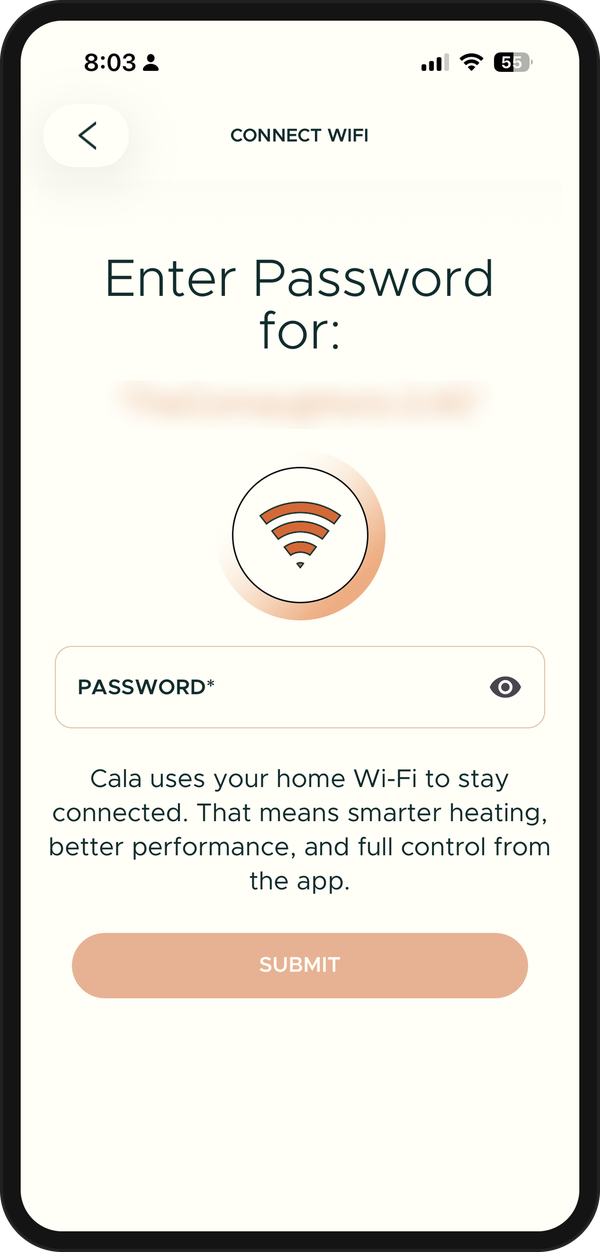
Enter your Wi-Fi password, then tap SUBMIT. -
Tap SUBMIT. Your Cala shows STEP 2 OF 3: WI-FI while it joins your network, then STEP 3 OF 3: CLOUD. The app shows Registering your Cala.
Your Cala joins your Wi-Fi network.
Step 4: Name your Cala
-
When the app shows Let's give your Cala a name., enter a name in NAME, up to 20 characters. Something like "Hot Stuff" or "Garage Cala".
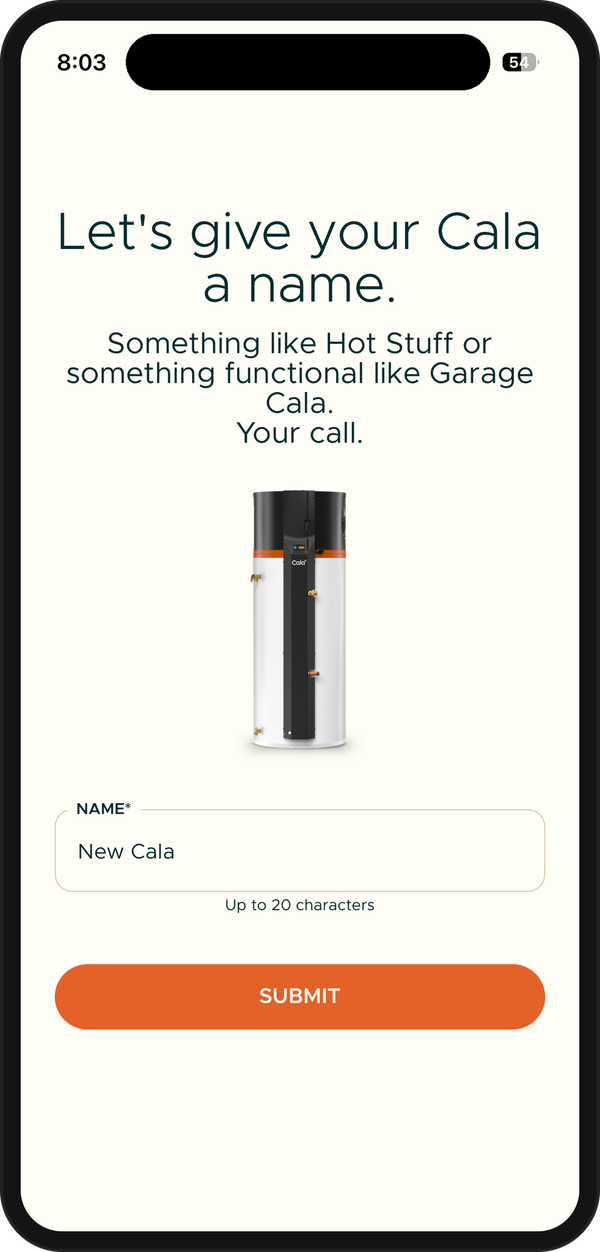
Give your Cala a name, up to 20 characters. -
Tap SUBMIT. The app shows You're all set! and your Cala shows SETUP COMPLETE.
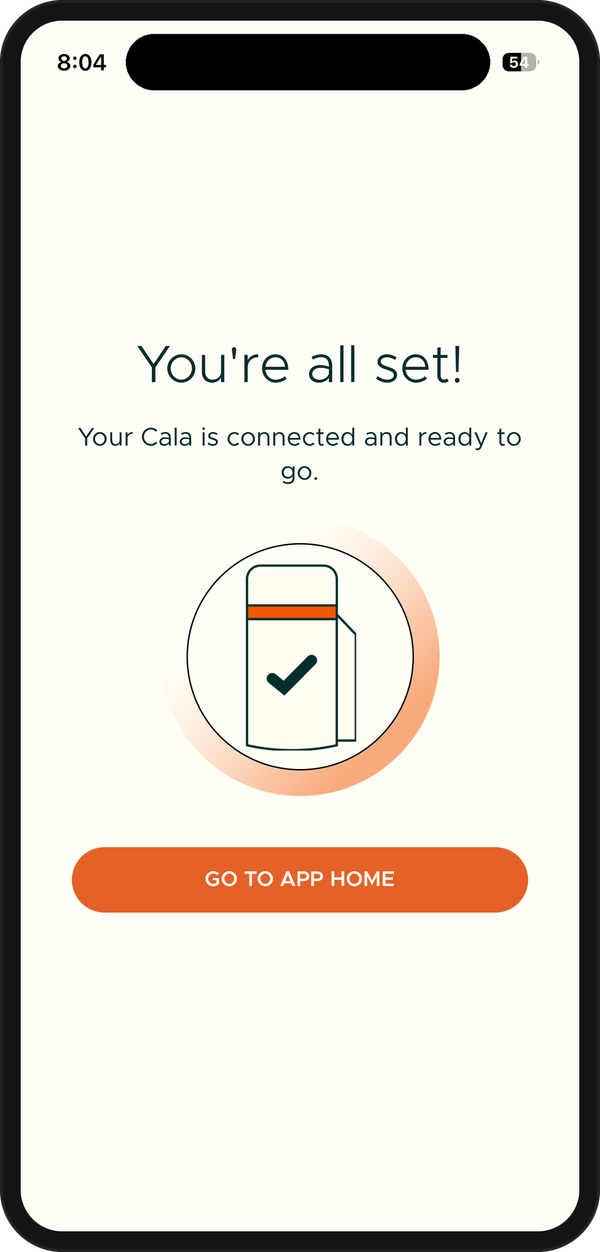
Your Cala is connected. 
All three steps are checked when setup is complete. -
Tap GO TO APP HOME. You'll see your Cala on the app's Home screen.
Next: see what Cala does in its first month.
If something goes wrong
If a step doesn't work, your Cala's screen says which step stopped (for example STEP 2 OF 3: PROBLEM) and what to try. The most common ones:
- Couldn't Connect over Bluetooth (in the app): check that Bluetooth is on and your Cala is showing its code, then tap TRY AGAIN. Tap Help for more ideas.
- Code didn't match (on your Cala): check the 5 digits on your Cala's screen and enter them again.
- Network not found (on your Cala): check you picked the right network, and that it's 2.4 GHz or dual-band (not 5 GHz only).
- Wi-Fi password didn't work (on your Cala): enter the password again in the Cala app. Passwords are case-sensitive.
- Joined, but no address from router (on your Cala): restart your router, then try again in the app.
- Couldn't Connect Just Yet. (in the app): double-check your network and password, then tap TRY AGAIN.
- Wi-Fi works, cloud is slow (on your Cala): your Wi-Fi settings are saved. When the check mark appears on your Cala's screen, press Select to continue.
Still stuck, or need to move your Cala to a new network later? See Change Wi-Fi or reconnect an offline heater.
Add a second home
Have a Cala at another address, like a vacation home or a rental? Add that home in the app, then connect its Cala the same way. You can have up to 5 homes.
-
In the Cala app, tap the menu icon at the top left.
-
Tap the name of your current home at the top of the menu. A list of your homes opens below it.
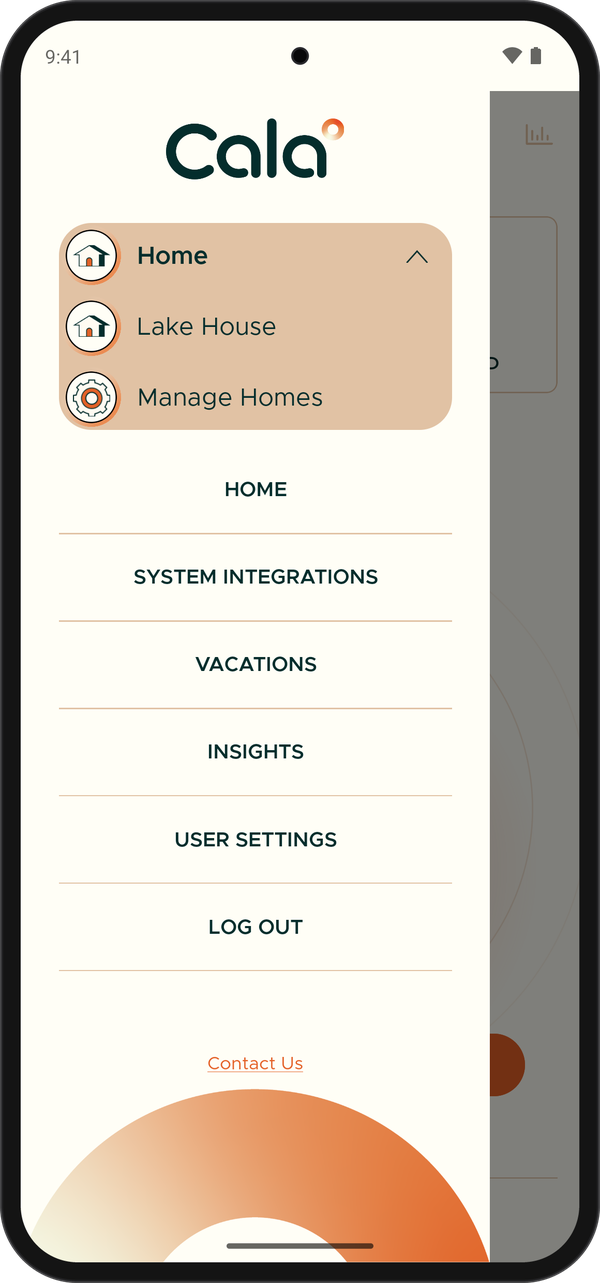
Open the menu and expand your homes to find Manage Homes. -
Tap Manage Homes. The MANAGE HOMES screen lists your homes.
-
Tap ADD A HOME, fill in the new home's name and address, and tap ADD HOME. See Add your home for each field.
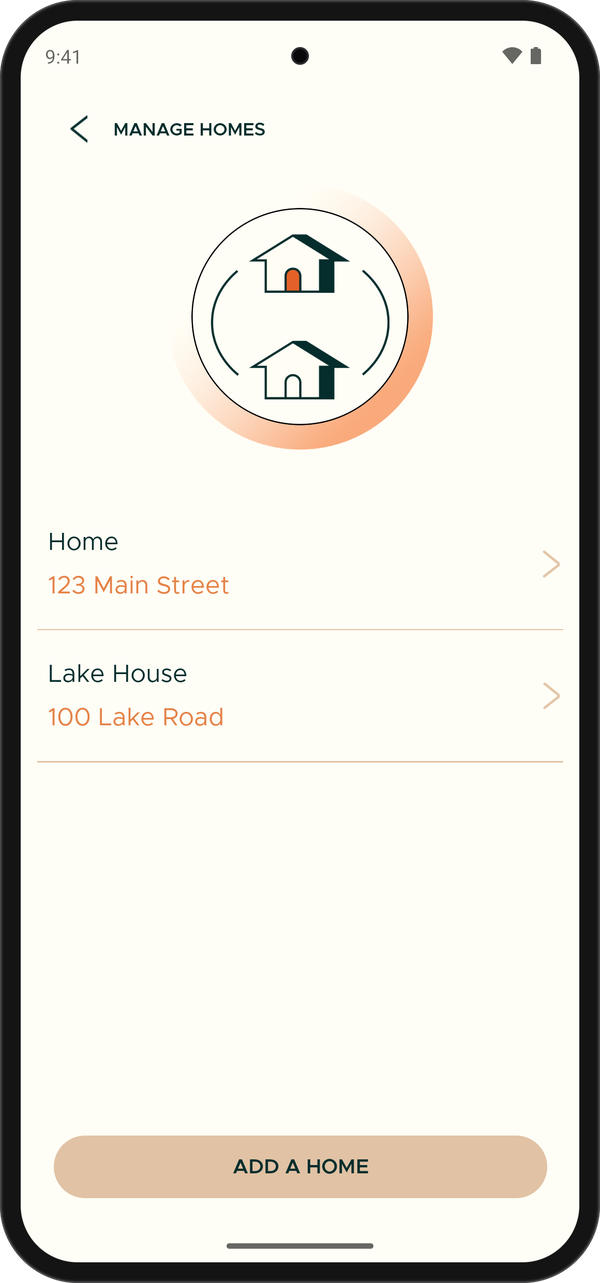
MANAGE HOMES, with ADD A HOME at the bottom. -
On the new home's page, tap Cala Water Heaters, then ADD WATER HEATER, and follow Steps 1 to 3 above while standing next to that home's Cala.
To switch between homes later, tap the home name at the top of the menu and pick the one you want.