
If you have Cala in more than one place, like a home and a cabin, you can keep them all in one Cala app. This guide shows how to switch between homes, update a home's details, look up your water heater's details and add another heater.
Switch homes
-
In the Cala app, tap the menu icon at the top left.
-
Tap the home name at the top of the menu. Your other homes show below it.
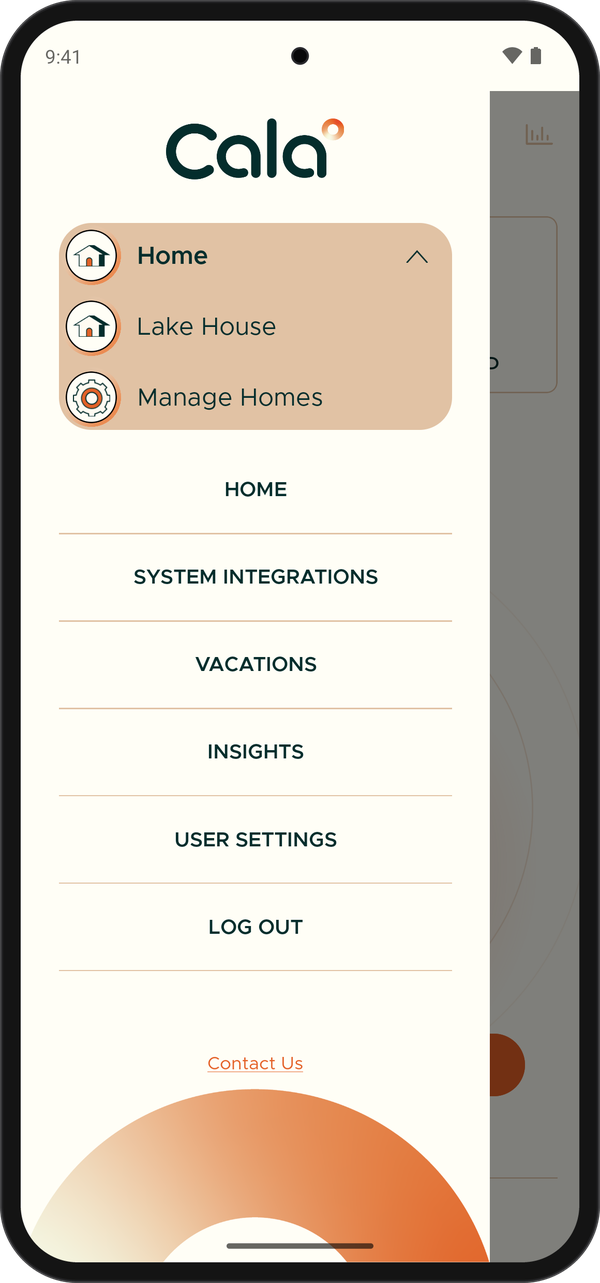
The menu lists your homes, with Manage Homes at the bottom. -
Tap the home you want. The menu now shows that home's name, and the Home screen shows its water heater.
Open Manage Homes
-
In the Cala app, tap the menu icon at the top left, then tap the home name at the top of the menu.
-
Tap Manage Homes. The MANAGE HOMES page lists all your homes with their addresses.
-
Tap a home. Its HOME BASE page shows the home's name and address, with Users and Cala Water Heaters below.
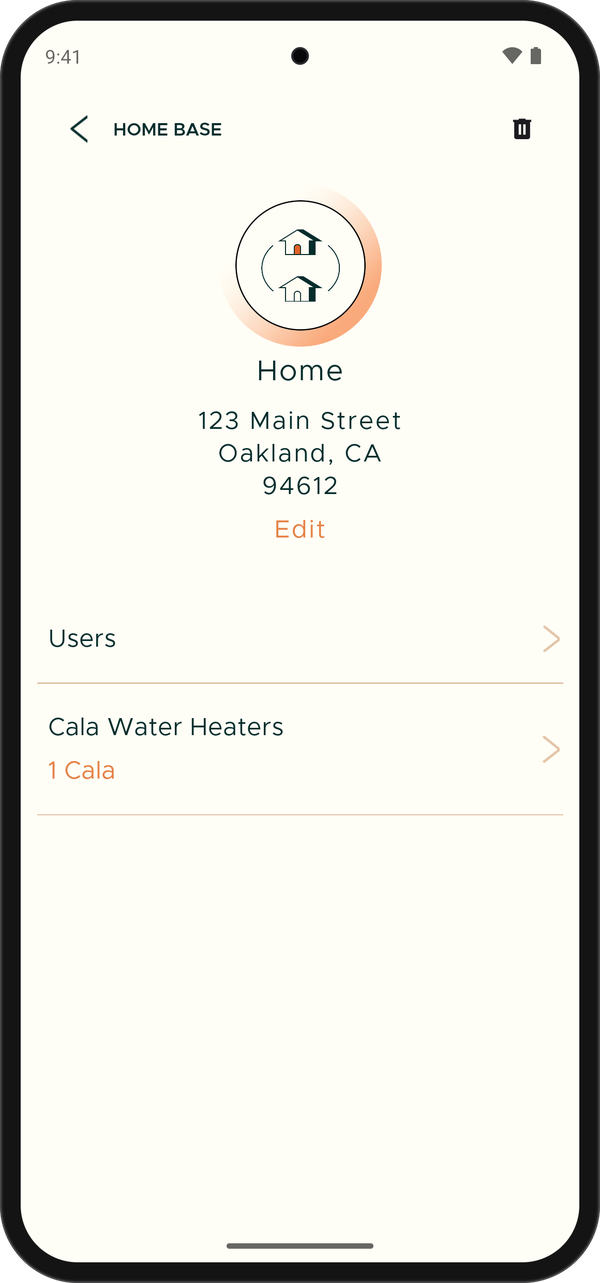
HOME BASE for one home.
To add another home, tap ADD A HOME on the MANAGE HOMES page. See Add your home. You can be part of up to 5 homes.
Edit a home's name or address
-
In the Cala app, on the home's HOME BASE page, tap Edit under the address.
-
Change the HOME NAME, ADDRESS 1, ADDRESS 2, CITY, STATE or ZIP. Each of your homes needs its own name.
-
Tap SAVE CHANGES. The HOME BASE page shows the new details.
See your water heater's details
-
In the Cala app, on the home's HOME BASE page, tap Cala Water Heaters. The list shows every Cala in the home.
-
Tap a heater. Its page shows:
- Name: the name you gave it when you connected it.
- Firmware Version: the software your Cala is running.
- Device ID: your Cala's serial number. Support may ask for it.
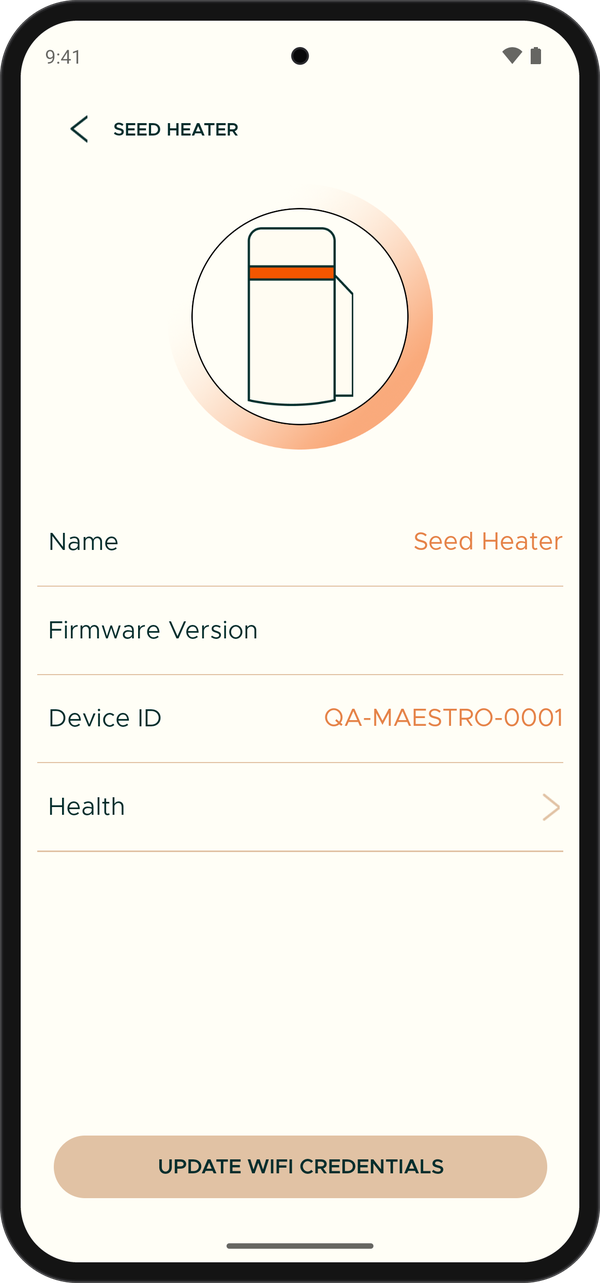
The water heater details page.
To connect this heater to a new Wi-Fi network, tap UPDATE WIFI CREDENTIALS. See Change Wi-Fi or reconnect an offline heater.
Add another water heater to a home
-
In the Cala app, on the home's HOME BASE page, tap Cala Water Heaters.
-
Tap ADD WATER HEATER, then follow the same steps as for your first heater. See Connect your Cala to the app and Wi-Fi.
-
When you're done, the new heater is in the list, and you can swipe between your heaters on the Home screen.
Delete a home
Only the home's owner can do this.
-
In the Cala app, open the home's HOME BASE page and tap the trash icon in the top right corner.
-
Read the warning in the Delete Home window.
-
Tap DELETE HOME to confirm, or Cancel to keep it. Once it's deleted, the app shows Home deleted and opens your next home.