
You can type your time-of-use rates into the Cala app yourself, straight from your bill. Once they're in, you can check them and change them any time.
Enter your rates
-
In the Cala app, tap the menu icon at the top left, tap SYSTEM INTEGRATIONS, then tap Variable Energy Pricing.
-
Tap Enter manually. The EDIT RATES screen opens and asks you to enter the prices and times from your utility bill.
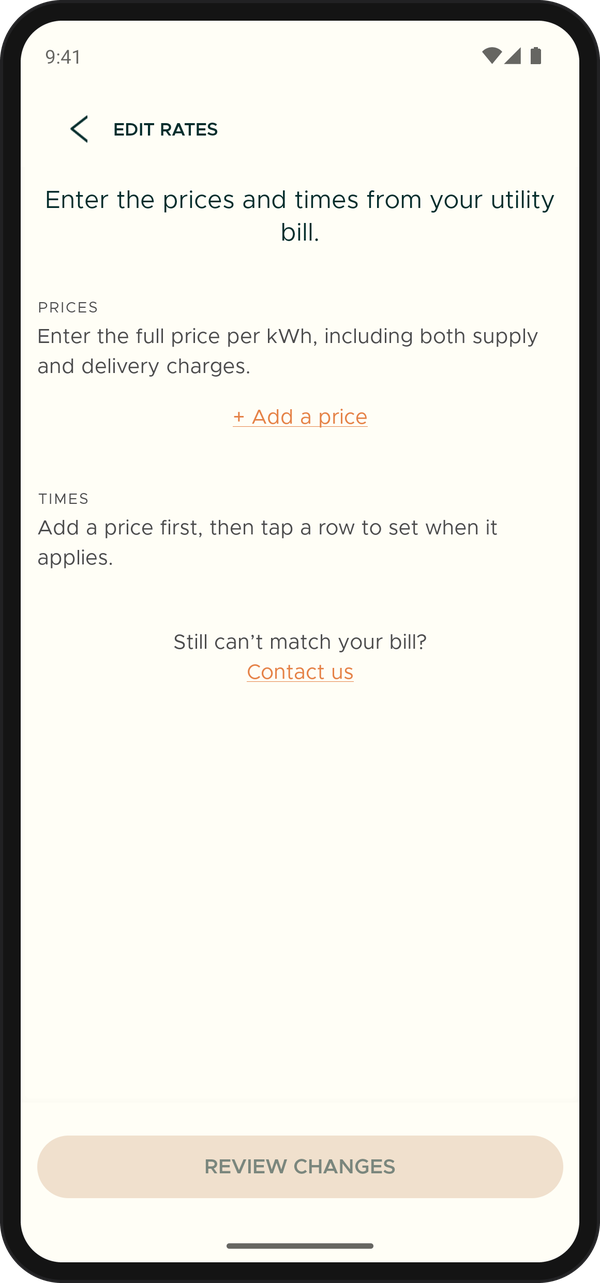
Start with your prices, then set when each applies. -
Add your prices: see Set your prices.
-
Set when each price applies: see Set when each price applies.
-
Save: see Save your rates. Your Cala starts planning around your rates as soon as you save.
Set your prices
-
Under PRICES, tap + Add a price, or tap a price to change it. The Edit price box opens.
-
Type the full price per kWh, including both supply and delivery charges, for example $0.32. It must be under $5.
-
Tap DONE. Add each price on your bill the same way, such as off-peak, mid-peak and peak. If you change a price, every time block that used it now uses the new one.
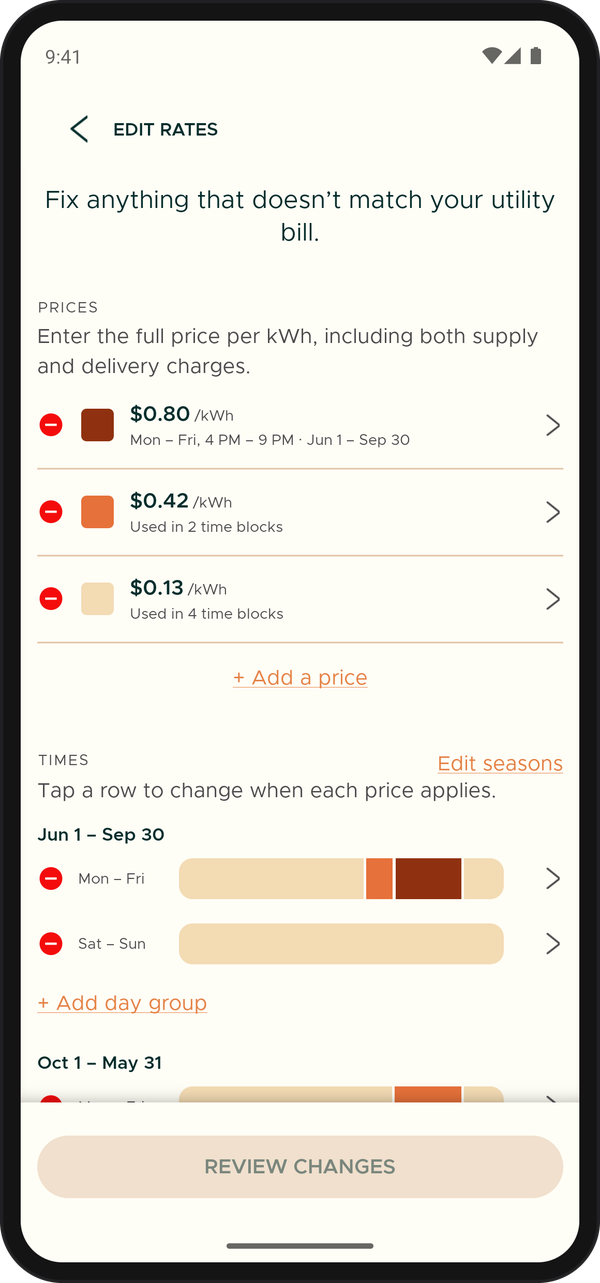
Prices are at the top. Times, grouped by season and days, are below.
Set when each price applies
-
Under TIMES, tap the row for the days you want to set, for example weekdays. The EDIT TIMES screen opens.
-
Drag a divider on the bar to move where one price ends and the next begins, or tap a block to set its start time, end time and price. Blocks start and end on the hour and always fill the whole day.
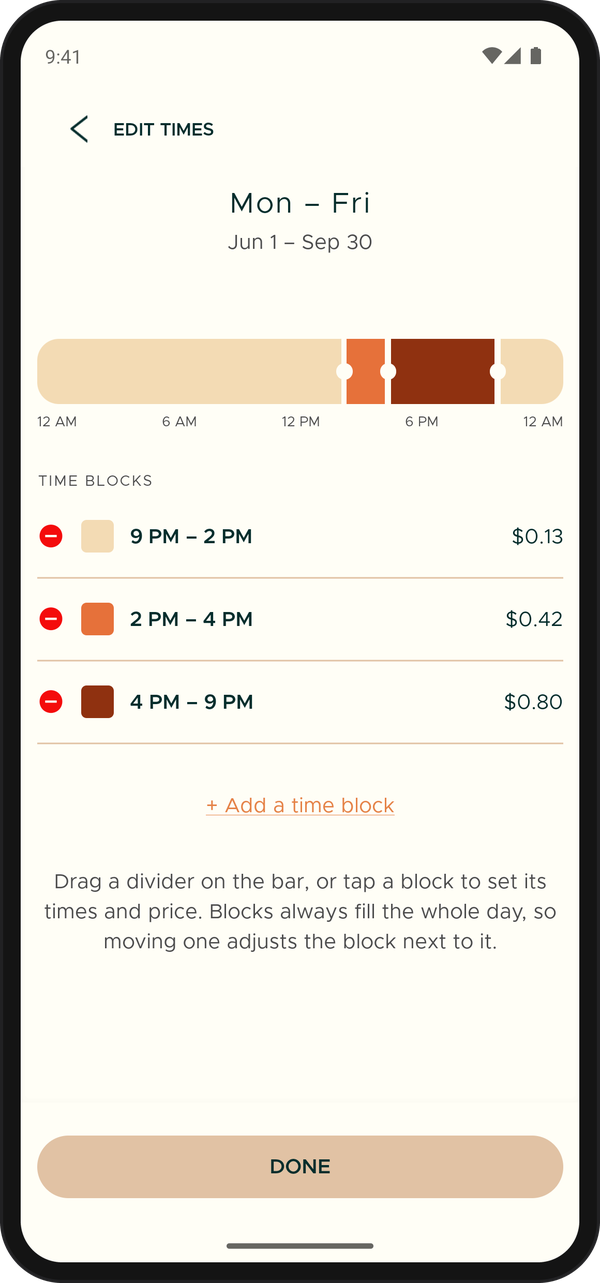
Each block has a start time, an end time and a price. -
To split the day further, tap + Add a time block. A day can have up to 8 blocks.
-
Tap DONE. You're back on EDIT RATES, and the row shows your times.
Different days, different times
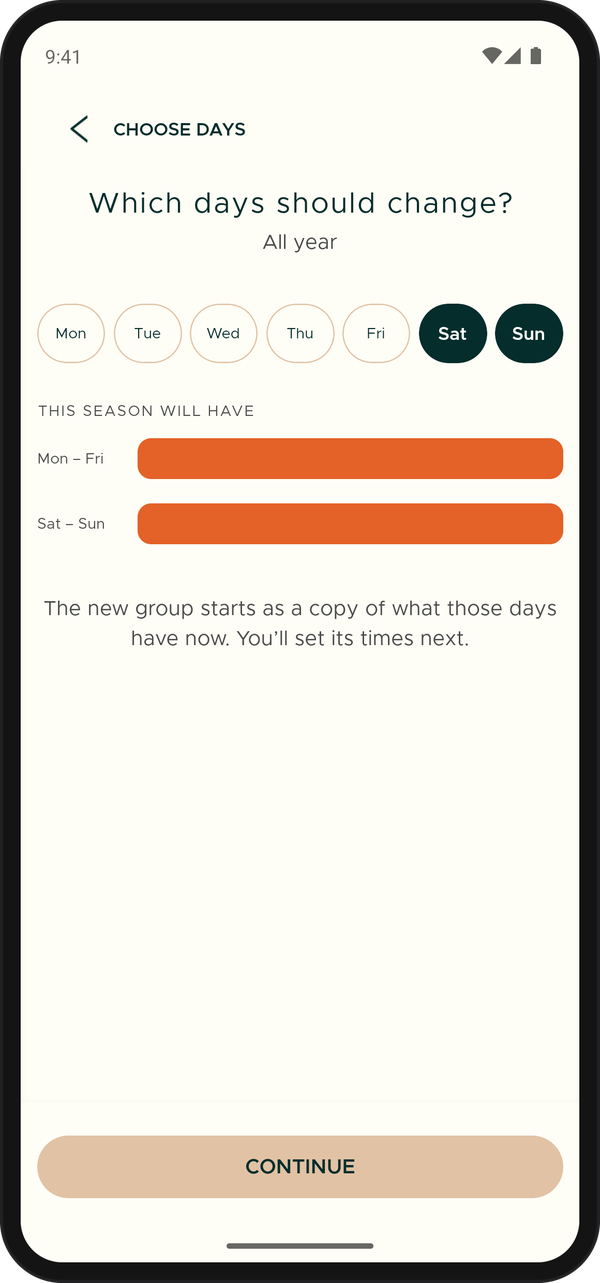
If weekends are priced differently from weekdays, for example, tap + Add day group under the season, pick the days on the CHOOSE DAYS screen, and tap CONTINUE. The new group gets its own row under TIMES.
Seasons
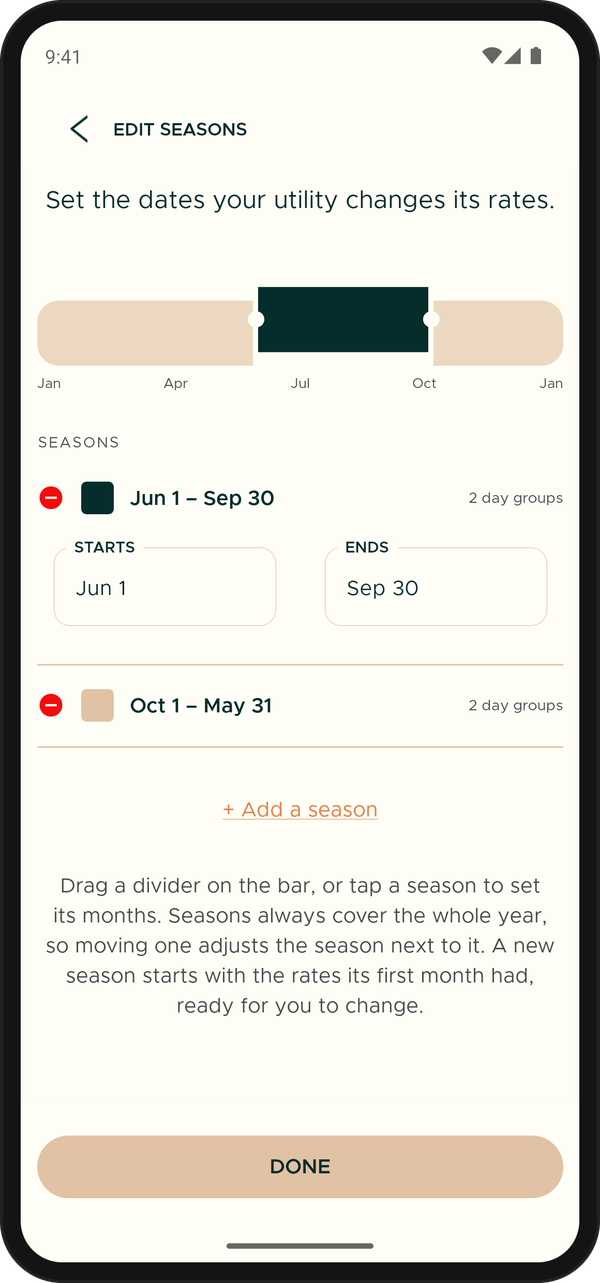
If your prices change during the year, tap Edit seasons next to TIMES. Set when each season STARTS and ENDS, or tap + Add a season (up to 4), then tap DONE.
Save your rates
-
On EDIT RATES, tap REVIEW CHANGES.
-
Check your prices and times against your bill. To go back and fix something, tap Keep editing.
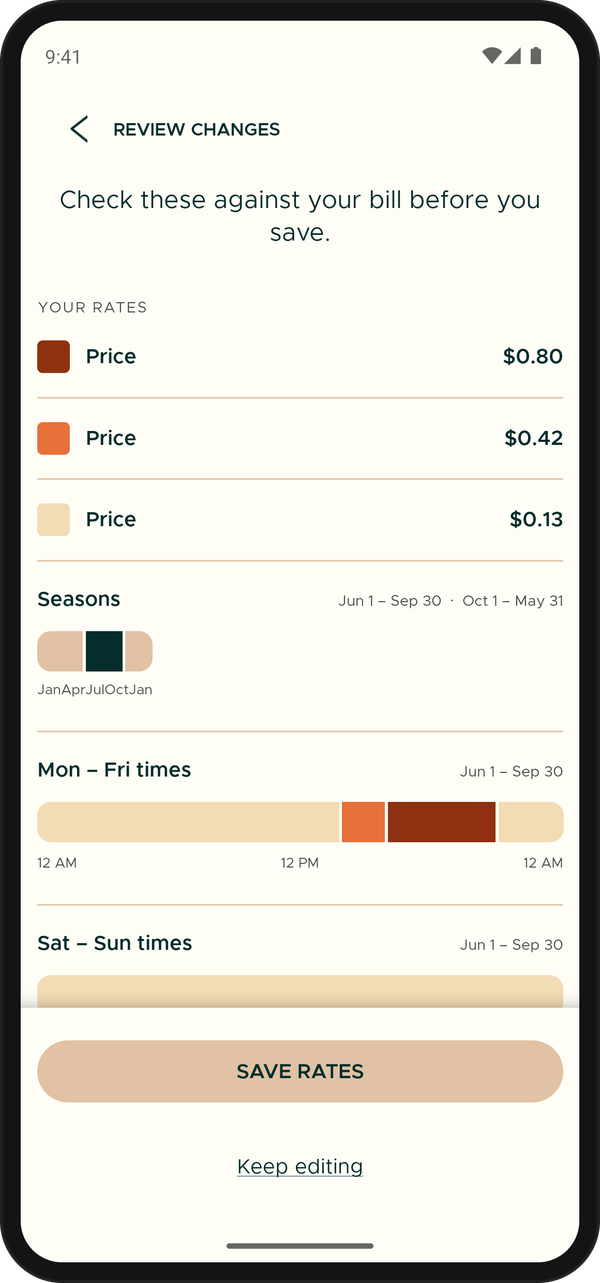
Check everything against your bill, then save. -
Tap SAVE RATES. You'll see "Rates saved" (or "Rates updated" when you change existing rates).
Check and edit your rates later
-
In the Cala app, tap the menu icon at the top left, tap SYSTEM INTEGRATIONS, then tap Variable Energy Pricing.
-
Under RIGHT NOW, read the price you're paying at this moment and how long it lasts. The bar below shows the whole day: each color is a different price. Press and drag along the bar to see the price at another time.
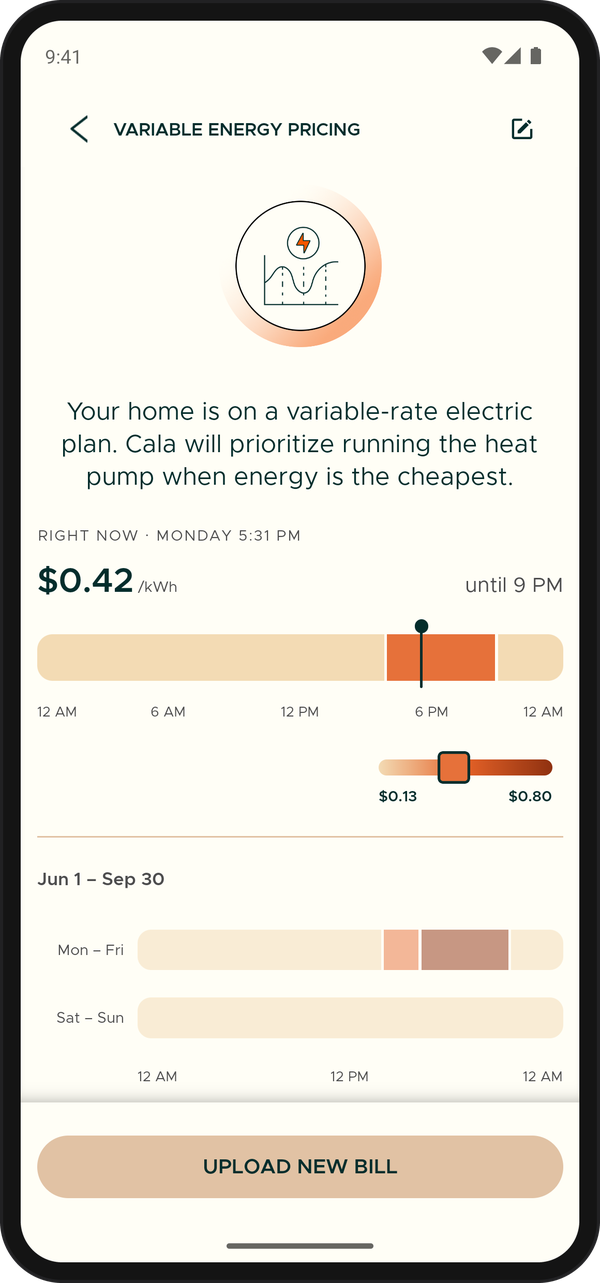
RIGHT NOW shows the price you pay at this moment. The bar shows the rest of the day. -
To change something, tap Edit rates under "Is something wrong with your rates?" (or the edit icon at the top right). The EDIT RATES screen opens with your rates filled in. Change them as in Set your prices and Set when each price applies, then save.
If the link says Contact us instead of Edit rates, tap it to email Cala's support team, and they'll update your rates for you.
When your plan changes
Switched to a new rate plan or utility? Edit your rates as above, or tap UPLOAD NEW BILL on the VARIABLE ENERGY PRICING screen and send a photo of a bill on the new plan.