
If your utility charges different prices at different times of day (time-of-use, or TOU, rates), send Cala a photo of your bill. Cala then heats your water when electricity is cheapest.
What the photo needs to show
Your photo should clearly include either:
- the name of your utility company and the rate plan you're on, or
- the price per kWh during on-peak and off-peak periods, and the times of day each period applies.
The image must be 10 MB or smaller.
Upload your bill
-
In the Cala app, tap the menu icon at the top left, then tap SYSTEM INTEGRATIONS.
-
Tap Variable Energy Pricing. The VARIABLE ENERGY PRICING screen opens and explains time-of-use rates.
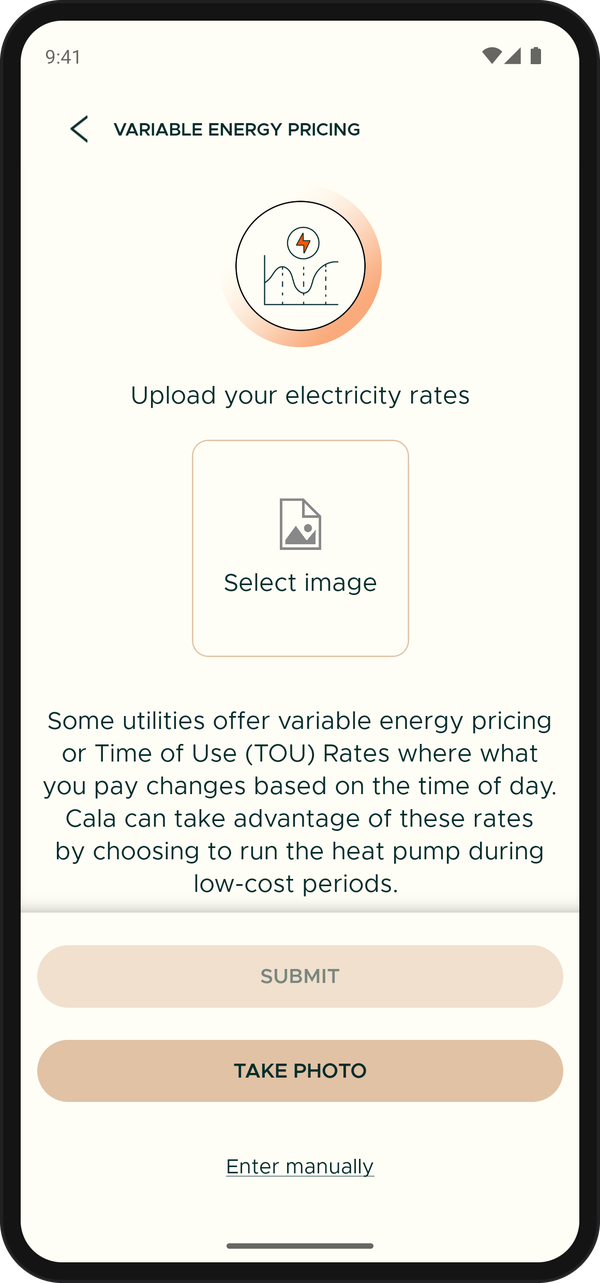
Choose a photo of your bill, then upload it. -
Choose how to add your bill:
- To use a photo already on your phone, tap the image box (Select image) and pick the photo.
- To take a new photo, tap Take Photo and photograph your bill.
The first time, the app reminds you what the photo should include. Tap GOT IT to carry on.
-
Check that your bill shows in the image box and is easy to read.
-
Tap SUBMIT. You'll see "Thank you for uploading your utility bill. Our team is processing your information and will update your rates shortly."
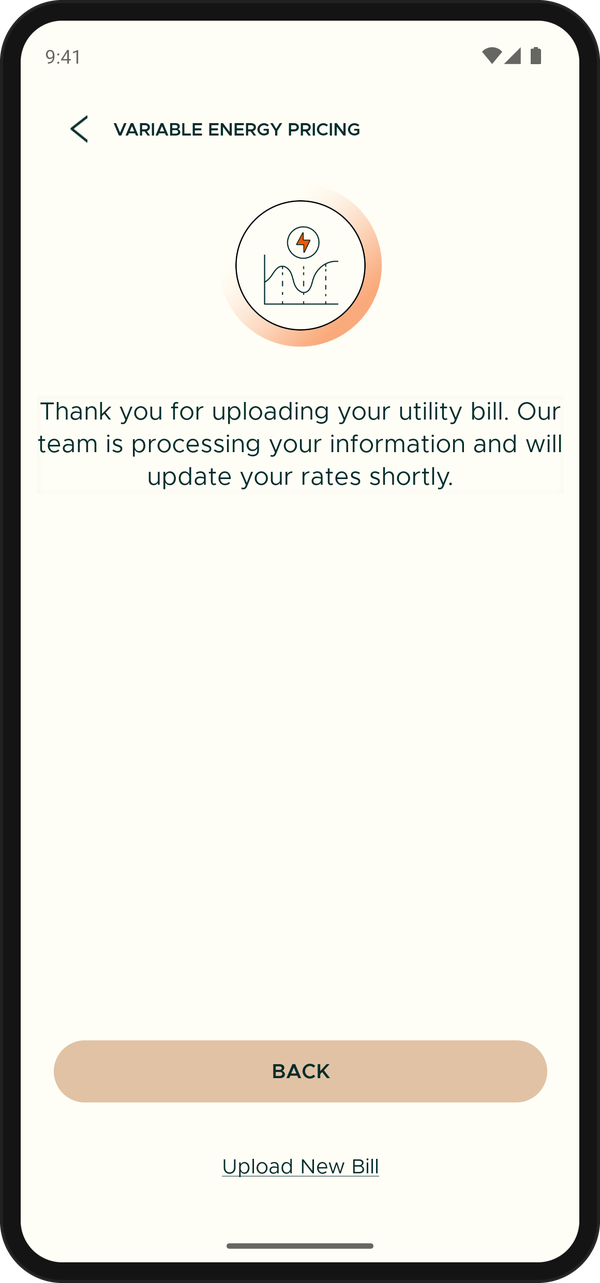
After you upload, Cala sets up your rates and the screen shows it is pending.
What happens next
Cala's team reads your bill and sets up your rates. Until they're done, tapping Variable Energy Pricing shows the same thank-you message. Once your rates are in, the screen shows them instead. See Enter or edit your rates.