
Once your Cala is paired with Home Assistant, it can see what your solar panels are producing, whether you're importing or exporting power, and how full your home battery is. Cala uses these readings to plan its heating. Home Assistant only shares information: your Cala stays in control of how it heats.
Set up your Energy dashboard
There's nothing to set up in the Cala integration. Cala reads the same power sensors that Home Assistant's Energy dashboard uses. If your Energy dashboard already shows your solar, grid and battery power, you're done: skip to Check that your Cala is receiving the readings.
-
In Home Assistant, go to Settings → Dashboards → Energy.
-
Under Solar panels, add your solar production power sensor.
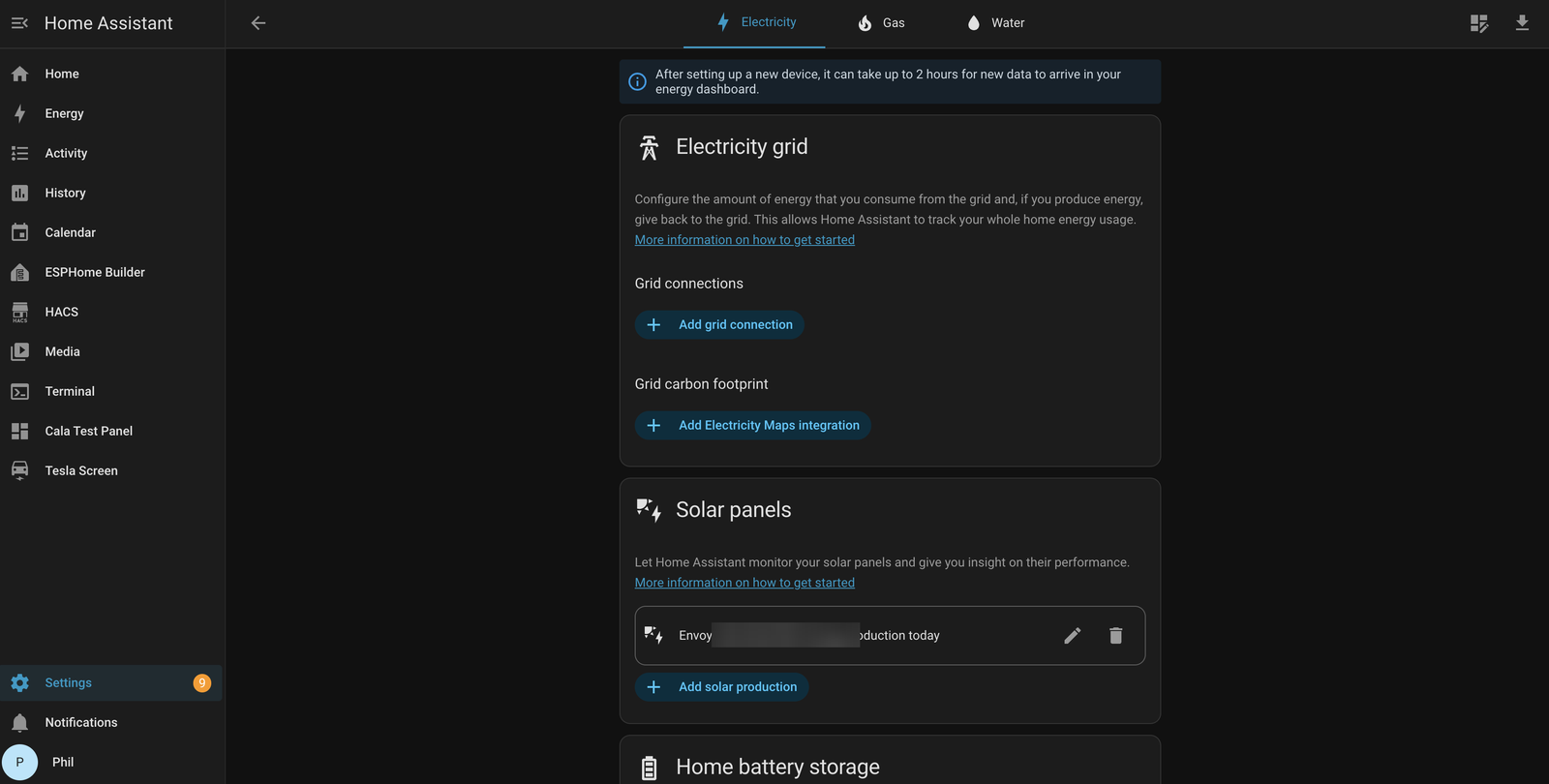
Add your solar production under Solar panels. -
Under Electricity grid, add your grid power sensor.
-
Under Home battery storage, add your battery power sensor and its state of charge.
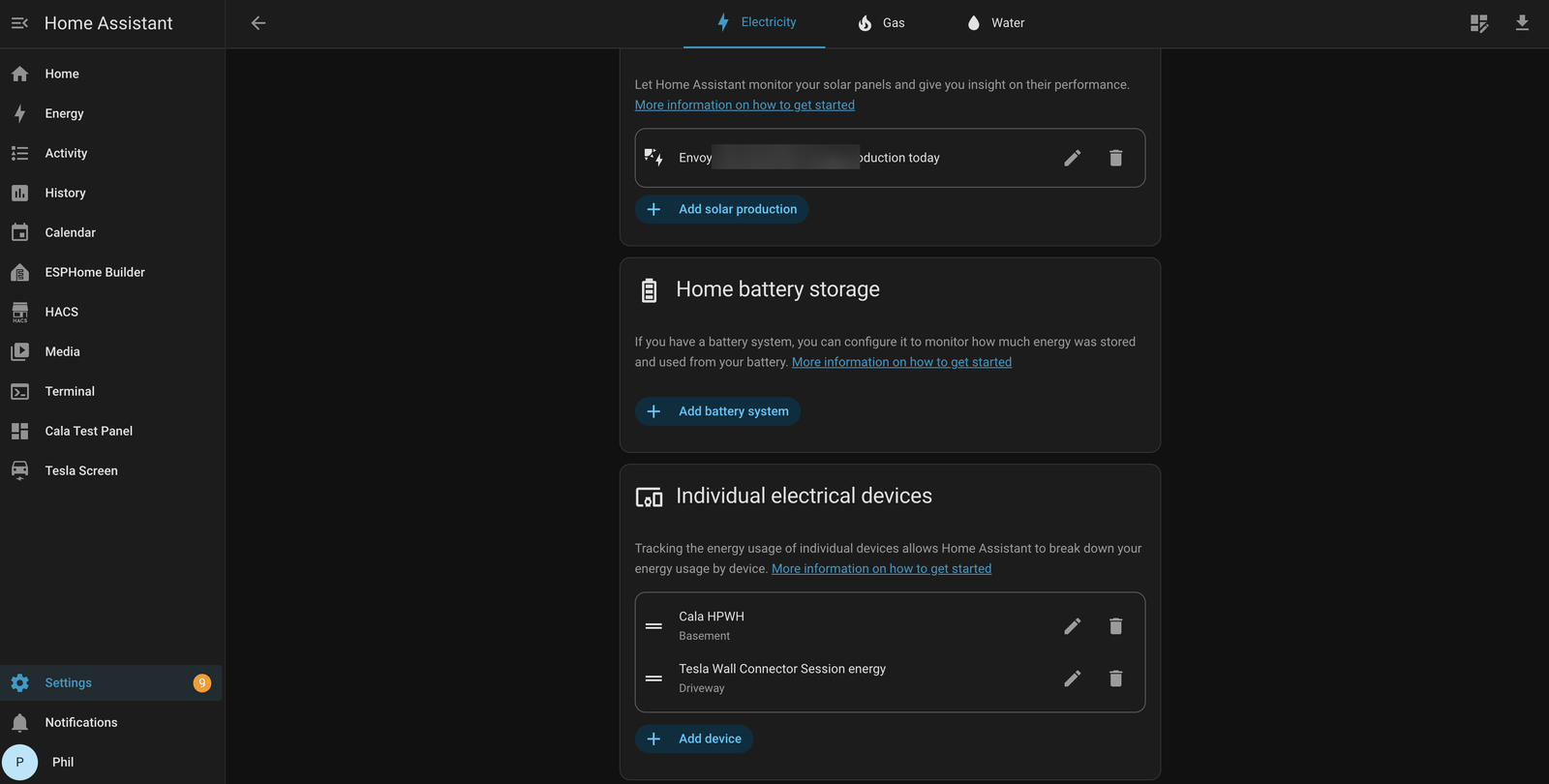
Add your battery under Home battery storage. -
Save. The Cala integration reloads by itself and starts sending these readings to your Cala.
Tell Cala when your home is off the grid
If you have a battery or other backup power, Cala can also know when your home has lost utility power. The Energy dashboard has no power-outage sensor, so you choose it in the Cala settings. This is optional.
-
In Home Assistant, go to Settings → Devices & services → Cala and click Configure.
-
Choose Settings (TOU price feed, publish interval), then click Submit. The Settings page opens.
-
In Grid status entity (on-grid / off-grid), choose the sensor that tells you whether your home is on utility power, such as your battery system's grid status.
-
If your sensor is on during an outage instead of while the grid is connected, turn on Invert grid status (entity is on during an outage).
-
Click Submit. The integration reloads with your change.
Other settings
The same Settings page has two more options. Most homes can leave them as they are.
-
Solar/grid/battery publish interval: how often, in seconds, the readings are sent to your Cala even when nothing has changed. The default is 30 seconds. Changes are also sent as they happen.
-
Choose solar, grid and battery sensors by hand: for systems the Energy dashboard can't describe. Turn it on and click Submit to open a page where you pick each sensor yourself, and say which direction is positive for your grid and battery power. These choices replace the ones from the Energy dashboard. Leave it off to follow the Energy dashboard.
Check that your Cala is receiving the readings
-
On your Cala's screen, from the Home screen, press Up or Down until SETTINGS is highlighted, then press Select.
-
Press Down until DEVICE STATUS is highlighted, then press Select. The STATUS screen opens.
-
Press Select to open DETAILED STATUS.
-
Press Down until you reach SOLAR & BATTERY.
SOLAR & BATTERY when Home Assistant readings are arriving.
When everything is working, you see:
- Source: home_assistant
- Last Reading: "just now" or a few minutes ago
- Solar Now: what your panels are producing, in watts
- Battery: your battery's charge, followed by "chg" while it's charging or "dis" while it's discharging
- Grid: "import" or "export" and the power in watts, or "idle"
A row that reads "n/a" means that reading isn't being sent, usually because it isn't on your Energy dashboard. If Last Reading: says "never", check that your Cala's HOME ASSISTANT screen shows Status: Connected.
Press Back to leave the status screens.
In the Cala app
In the Cala app, tap the menu icon at the top left, tap SYSTEM INTEGRATIONS, then tap Solar & Battery. When readings are arriving, the screen shows Home Assistant with CONNECTED, what Cala can see (solar only, or solar and battery), and under "Right now" your solar power in KW SOLAR and your battery's charge. See Set up Solar & Battery.
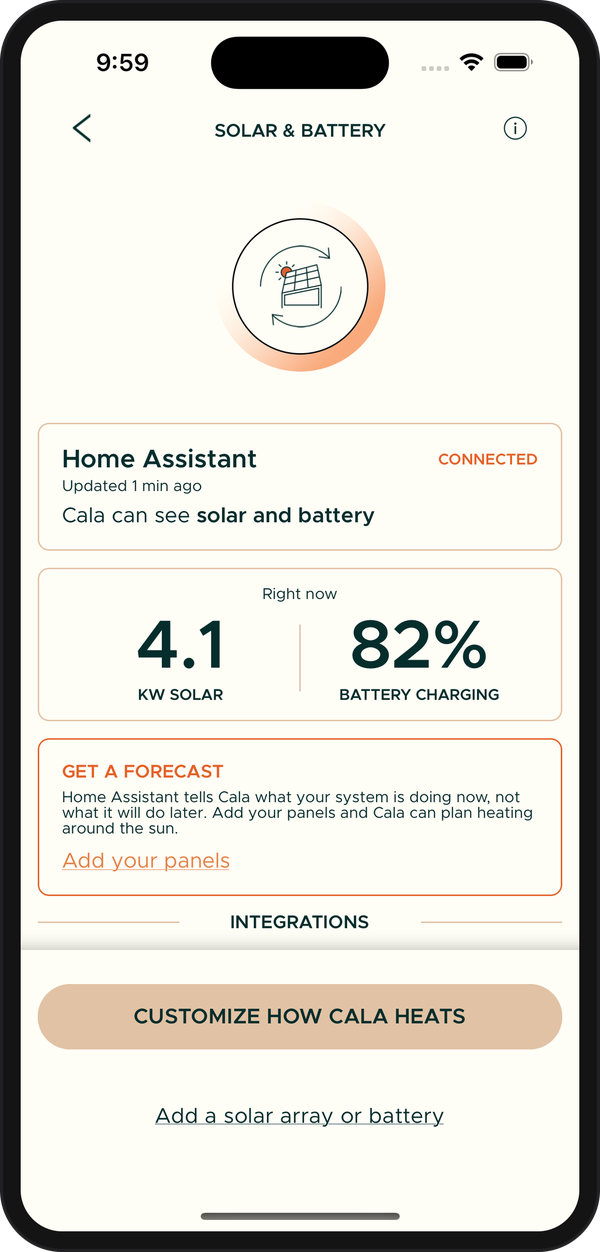
To choose how Cala uses your exported power and your battery, see Fine-tune how Cala heats: Advanced Settings.